
Store operations - 6 min read
By Laurynas - Updated
How to create an automatic discount in Shopify
To create an automatic discount in Shopify, open Discounts in Shopify admin, choose Create discount, select a native discount type, and switch the method to Automatic discount. Set the value and eligibility rules, review combinations and dates, then save and test the offer in the storefront.
This walkthrough creates a 15% order discount for carts worth at least €100. Use the same sequence with the value and currency that fit your store. The screenshots come from Shopify admin, and the example was not saved or activated.
1. Choose the automatic discount type
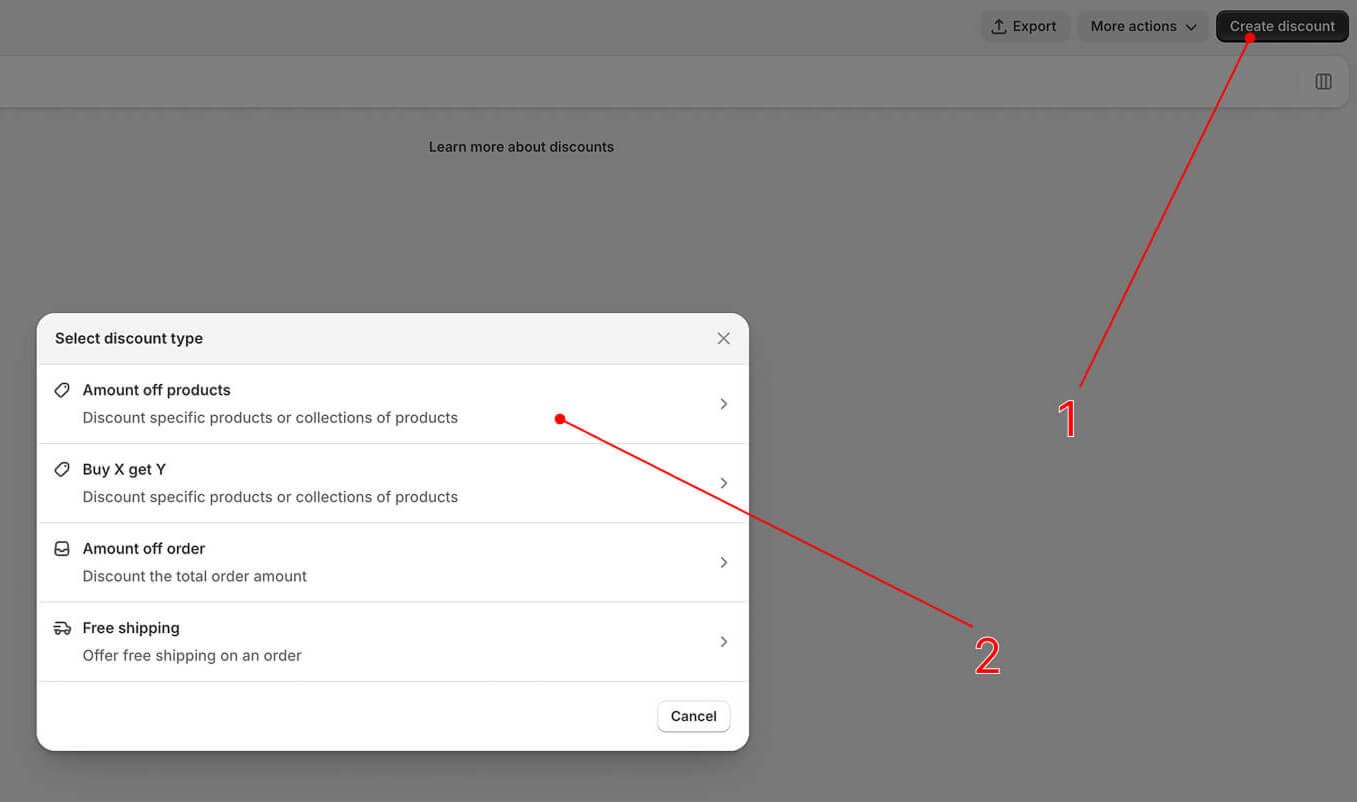
In Shopify admin, go to Discounts and select Create discount. Shopify's native picker includes Amount off products, Buy X get Y, Amount off order, and Free shipping.
Choose Amount off order when the offer should reduce the full eligible order. Choose Amount off products when only selected products or collections should receive the reduction. Buy X get Y and Free shipping have their own qualifying rules.
2. Set the method, title, and value
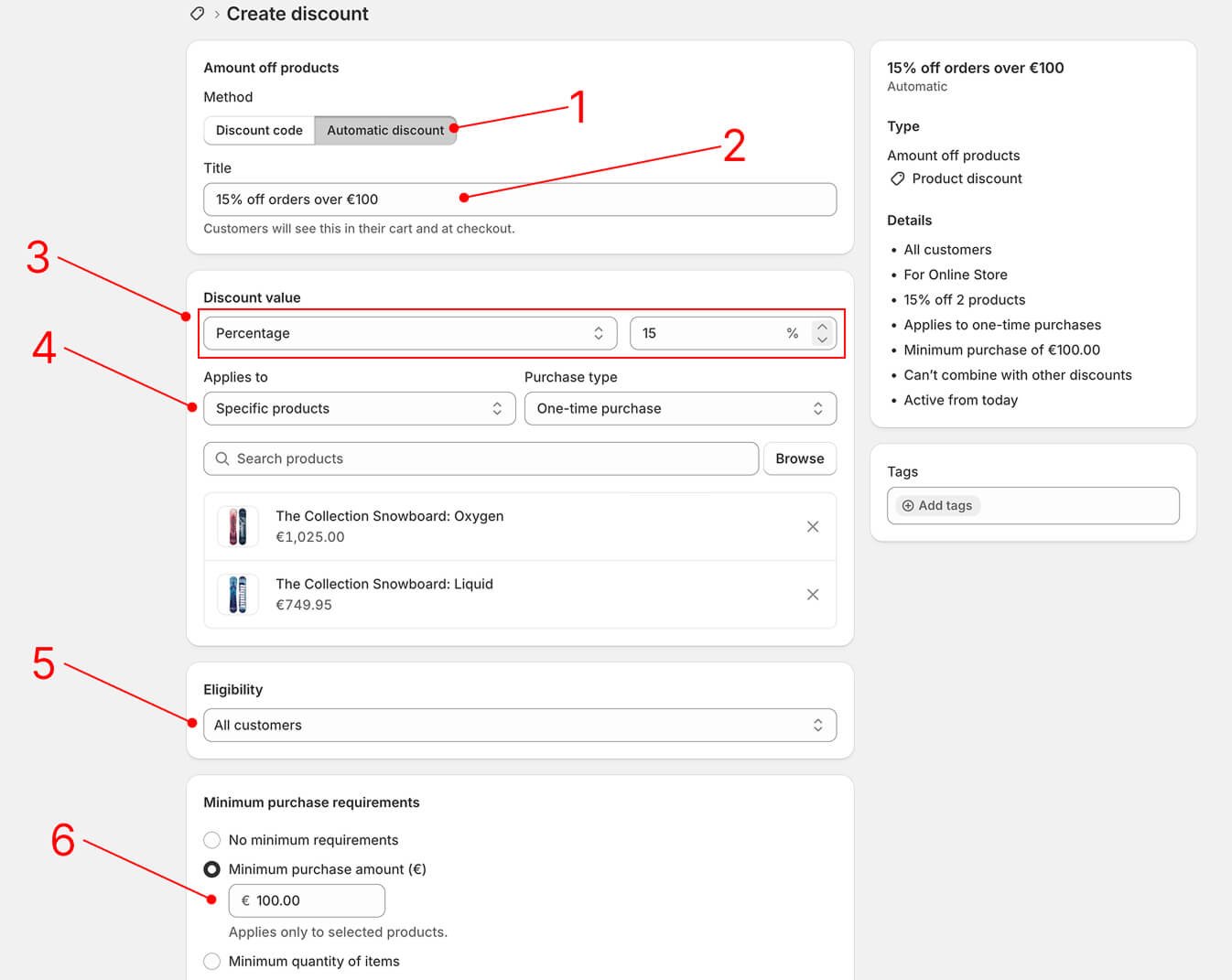
Select Automatic discount as the method. The title is customer-facing, so make it explain the benefit and the main condition. A title such as 15% off orders over €100 is clearer than an internal campaign name.
For this example, Discount value is Percentage and the value is 15. The purchase type is One-time purchase. If your store sells subscriptions, review that field before continuing because the selected purchase type controls which orders can qualify.
3. Choose who qualifies and set a minimum
Set Eligibility to All customers when every shopper may use the offer. If the promotion is intended for a smaller audience, choose the relevant customer segment instead.
Minimum purchase requirements controls when the discount starts applying. Select No minimum requirements for every eligible order, Minimum purchase amount for a spend threshold, or Minimum quantity of items for an item-count threshold. This example uses a €100 minimum purchase amount.
4. Review combinations and active dates
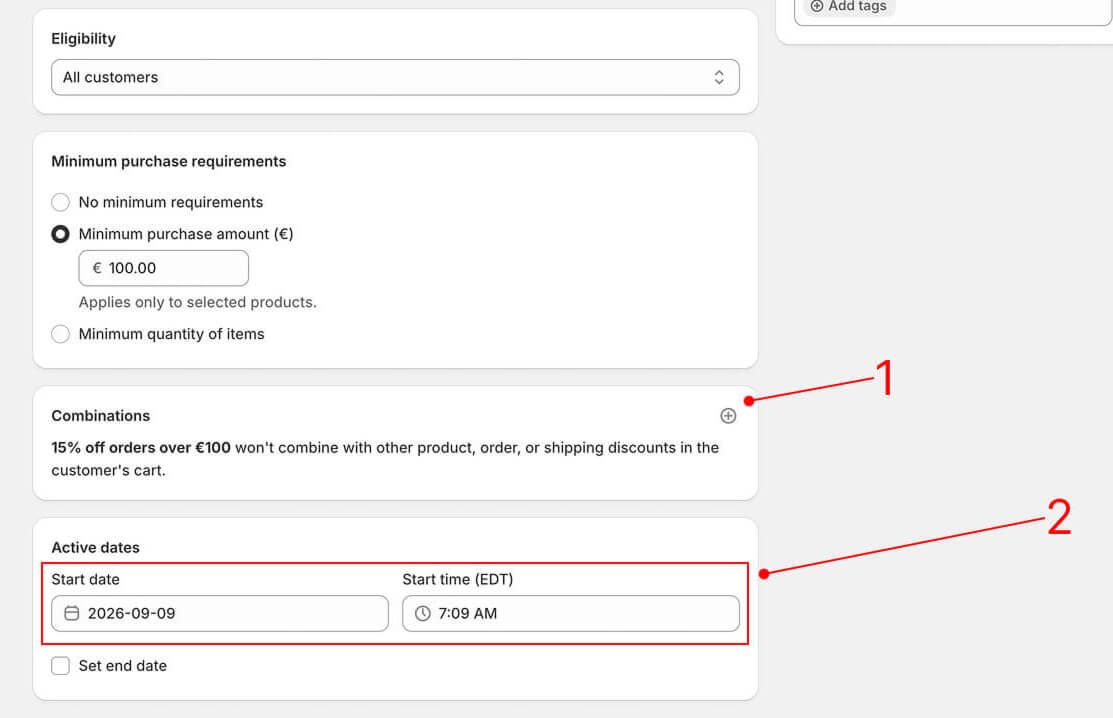
Open Combinations and decide whether this offer may run with product, order, or shipping discounts. Shopify checks the combinations you allow, and the summary states what the customer can receive. Review the result against your margin before launch.
Set the start date and time. Add an end date when the promotion has a real deadline. The time-zone label beside the field tells you which store time zone Shopify will use. Review the summary once more, then select Save when the configuration is ready.
5. Test the automatic discount before promotion
An automatic discount applies in the cart and checkout when the order meets its conditions. Customers do not enter a code. Run a storefront test before linking the offer from an email, ad, or landing page.
- Add a qualifying cart and confirm the discount title and correct reduction appear.
- Test a cart just below the spend or quantity threshold and confirm the discount does not apply.
- Check an eligible and an ineligible customer when the offer uses customer segments.
- Add another active discount and confirm the combination behaves as configured.
- Check the final checkout total, not only the cart message.
Why an automatic discount might not apply
Start with the discount summary in Shopify admin. It is the fastest way to spot a wrong method, value, channel, purchase type, minimum, or combination setting. Then compare the test cart with the configured conditions.
- The cart does not meet the minimum spend or item quantity.
- The customer, product, collection, purchase type, or sales channel is not eligible.
- The start time has not arrived or the end time has passed.
- Another discount is active and the two offers are not allowed to combine.
- For Buy X get Y, the customer has not added both the qualifying item and the reward item to the cart. Shopify does not automatically add the reward item.
How the other native discount types differ
Amount off products adds product or collection selection to the setup. Buy X get Y asks you to define the qualifying purchase and the reward. Free shipping lets you set destination and order-value conditions. Each type can use the automatic method, but the required fields change with the offer.
Keep the promotion easy to explain. A shopper should be able to understand what qualifies, what they receive, and when the offer ends without reading a long policy.

Written by
Laurynas
- 7+ years with Shopify
- 15+ years in ecommerce
Laurynas has over 15 years of experience in ecommerce, including more than 7 years working with Shopify. He brings that background to his writing about Shopify tools and the everyday decisions involved in running an online store.